Main Page Beginners Design Tips Get Traffic Earn Money Picks Codes

Are you a Successful Blogger?

Successful Blogging

  • Beginners can learn the basics about Blogging
  • Advanced Bloggers can learn how to take their blog up a notch.
  • Anyone can learn HOW TO GET MORE TRAFFIC
  • And more- Templates, Codes, and Tips etc.

What do you want to read about? Scroll down or check out our sidebar for topics.

We post at least daily so check back or subscribe to our newsletter.

Successful Blogging.com

Setting up Feedburner in Blogger

Now I am going to take advantage of what Feedburner says they can offer me- free.

Tracking 100% of your feed traffic: Redirecting your Blogger feed to your FeedBurner feed

Blogger can make sure all feed traffic for your blog content goes to your FeedBurner feed. This helps make sure your FeedBurner stats are comprehensive and accurate; even subscribers to the 'Original Feed' are routed through FeedBurner. To redirect your feed:

  1. In a new browser window, sign in to your Blogger account.

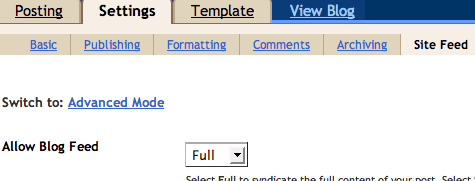
  2. From the Blogger Dashboard, click the Settings link for the blog you want to promote.

    The Settings page for your selected blog should appear.

  3. Click the Site Feed link under the Settings tab.

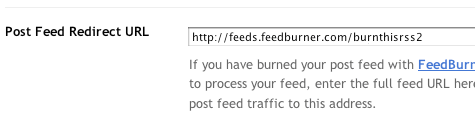
  4. Type your complete FeedBurner feed address into the Post Feed Redirect URL text field. Make sure you type in your entire feed address including the "http://" portion.

  5. Click Save Settings.

    You should see the message "Settings were Saved Successfully".

  6. Blogger will now redirect all feed traffic for your blog to your FeedBurner feed.

Feedburn with me

I am setting up Feedburner today. Believe it or not, I have not done this yet.

Blogitalls all say to do it to increase traffic and offer an alternative to feed services. So, I am giving it a whirl.

FeedBurner is the leading provider of media distribution and audience engagement services for blogs and RSS feeds. Our Web-based tools help bloggers, podcasters and commercial publishers promote, deliver and profit from their content on the Web.


If you publish a blog, you publish a feed. A feed is the format that allows your content to be delivered (and subscribed to) on the Web.
Feedburner says they can help your blog in the following ways;
1. Publicize your content and make it easy for people to subscribe.
2. Optimize distribution so that your content is properly formatted for all of the major directories and can be consumed by subscribers wherever they are.
3. Analyze your traffic to learn how many subscribers you have, where they're coming from and what they like best.
4. Make Moneyitize by participating in the FeedBurner Ad Network. Why not reward yourself for your effort?

How do I create a Blogger Feed?

Here are the directions that I followed.


  1. Enter your blog's web address in the "Ready to Burn?" form found on FeedBurner's homepage and at the bottom of the pages in the Blog and Podcast sections. If you plan to publish a podcast with your Blogger feed, check the "I am a podcaster" box. Click Next ».

    The Identify Feed Source page should appear.

  2. On "Welcome", make sure the title and FeedBurner address (URL) of your new feed are values you prefer.
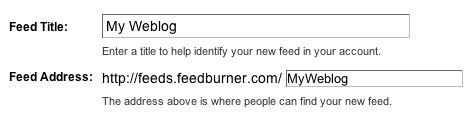
    The Create or Sign In To Your FeedBurner Account page should appear.

  3. Also on this page, create a FeedBurner account by picking a username and password and supplying your email address.

    When you've supplied all the required information on this page, click Activate Feed ». A "Congrats" page should appear.

  4. Read all of the information on "Congrats", then click Next » to continue with the setup process.

  5. If you selected "I am a podcaster" on the homepage, configuration options for our SmartCast service will appear. Here you can supply categories and other information for iTunes, append a copyright message, and submit your podcast to Yahoo! Search.
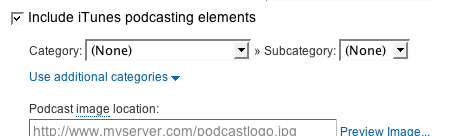
    When you are finished, click Next ». Configuration options for FeedBurner stats services should appear.

  6. On the stats configuration page, select the level of feed stats detail you want.

    Click Next » to finish the setup process and enter our feed management interface.

    You're now ready to make your FeedBurner feed available on your Blogger site!

My Feed.

http://feeds.feedburner.com/ KubricksPicksorg

Do you Thunderbird?

Mozilla, the people who bring us Firefox, have a FREE and wonderful e-mail client. If your someone, like myself, who has multiple e-mails to check on a daily, if not more, basis, Thunderbird is for you.


Here are some of the Thunderbird features.
Keep Your Vital Information Organized
Advanced Folder View screenshot
Advanced Folder Views
Thunderbird 2 offers a variety of ways for you to organize and display your folders, whether by favorites, recently viewed or folders containing unread messages. As always, you can also set up RSS and newsgroup folders to stay on top of news and your interests. Thunderbird 2 also allows you to maximize your message view pane by opting for a folder drop down menu instead of the traditional sidebar.

Message Tagging
Thunderbird 2 allows you to “tag” messages with descriptors such as “To Do” or “Done” or even create your own tags that are specific to your needs. Tags can be combined with saved searches and mail views to make it easier to organize email.

Thunderbird is so easy to set up. They save you set-up steps if you have gmail or one of the more popular services.
Thunderbird 2 makes it even easier to integrate and use various Web mail accounts from one inbox. Gmail and .Mac users can access their accounts in Thunderbird by simply providing their user names and passwords.

Thunderbird users can increase Thunderbird’s functionality and appearance using hundreds of add-ons. A Thunderbird add-on can let you manage contacts, place voice over IP calls, listen to music, and keep track of birthdates all from your inbox. You can even change the appearance of Thunderbird to suit your tastes.
Message History screenshot

http://www.mozilla.com/en-US/thunderbird/

Why I love Feedsweep


This is a Feedsweep feed. It is a FREE gadget that is very easy to set up. Feedsweep automatically updates whenever a site updates. You can design your own feed or use on of there templetes/


FeedSweep is an Cloud Computing service that pulls news and content from any Internet "feed" source and incorporates it to your web page or blog. It allows you to display constantly-updated news or information from an RSS, ATOM or RDF feed without any manual updates on your behalf.
Dynamic Content

Include up-to-date information from other web sites and news services to bolster your blog or web site's content. FeedSweep is a very popular, FREE service that allows you to include feeds with NO programming or coding.

They have collected the URL's of some of the most popular and well-updated news feeds under the Basic Editor section. With the Advanced Editor, you have the option of using one or many of your own favorite news feeds. FeedSweep will even combine multiple news feeds.

FeedSweep provides the ultimate in customization of colors and styles. There is a large collection of ready-made styles for you to choose from. Create a FeedSweep widget using the Basic Editor to browse and preview any of these styles. Or create a widget with the Advanced Editor and make your own style.
FeedSweep widgets use industry-standard JavaScript to place feed information on your web page in exactly the same manner as a Google ad. The inserted FeedSweep widget is compatible with all the popular web browsers and can read every popular feed format from RSS to ATOM to RDF. Plus, it's free.

Get Started!